AutoCall Caller Instructions

Use this guide when calling your dedicated AutoCall number to listen to messages, record a new broadcast, resend your latest recording, or reach customer service.

View Keypad Options

What Happens When You Call

1

Authorization

If your AutoCall is set to secure, only callers on the list will be able to listen to the messages.

2

Main Menu

You will hear keypad options to play messages, record and send, resend your latest recording, or hear customer service.

3

Broadcast Routing

When sending, choose 1 for everyone, or enter a specific sub group number if they are enabled. All entries must be followed by #. If you enter an invalid number, the available sub groups will be listed and you will be able to try again.

Main Keypad Menu

1

Play Latest Message

Plays the current recording. If no recording exists yet, the system tells you there are no messages.

2

Play Previous Messages

Cycles through older recordings (Up to 7 stored). After the oldest available file, it resets back to the first previous message.

3

Record a New Message

Requires your group password. Allows you to record a new message and send it to your list of contacts, or a specific subset of contacts. (sub groups). You may listen to your message and re-record if you are not happy with it before sending.

During recording, press any key to stop recording and go to the review menu.

4

Resend the Latest Message

Requires your group password. Sends your latest recording without creating a new one. If you have sub groups, you may send to one or more just like recording a new message.

If you need to review the latest recording, press 1 when you first call in.

5

Customer Service Number

The system reads your configured customer-service phone number digit by digit.

After You Record: Review Menu

After recording a new message, you get a review menu:

  • Send: Send this recording now (continues to sub group selection if applicable).
  • Review: Listen to your new recording again.
  • Re-record: Delete and re-record from the beginning.

Call Attempt Behavior

If some contacts are hard to reach, the system keeps working through retries automatically and reports progress along the way.

Automatic Retries

AutoCall retries numbers that are still not reached, while tracking each attempt per contact.

Progress Update

After your configured retry threshold (commonly 3 attempts), an In Progress report can go out showing completed calls and pending calls.

Final Outcome

Retries continue (many groups use up to 7 total attempts) until remaining calls are finalized as answered, voicemail, or failed.

Interactive Polling During Broadcasts

Polling happens on outbound broadcast calls. Ask the question in your recorded message and tell listeners which button to choose.

How to Use It

In your recording, list your options and tell listeners which number to press. For example: "For yes, press 2. For no, press 3."

Digits Used for Polls

Poll responses are captured on digits 2-8. These are saved per recipient and will be tallied in your reporting.

Reserved Buttons

1 repeats the message and 9 reads the customer service number, so avoid using those two for poll choices.

Broadcast Email Report

After your broadcast completes, you receive an email report with totals and delivery outcomes for that call run.
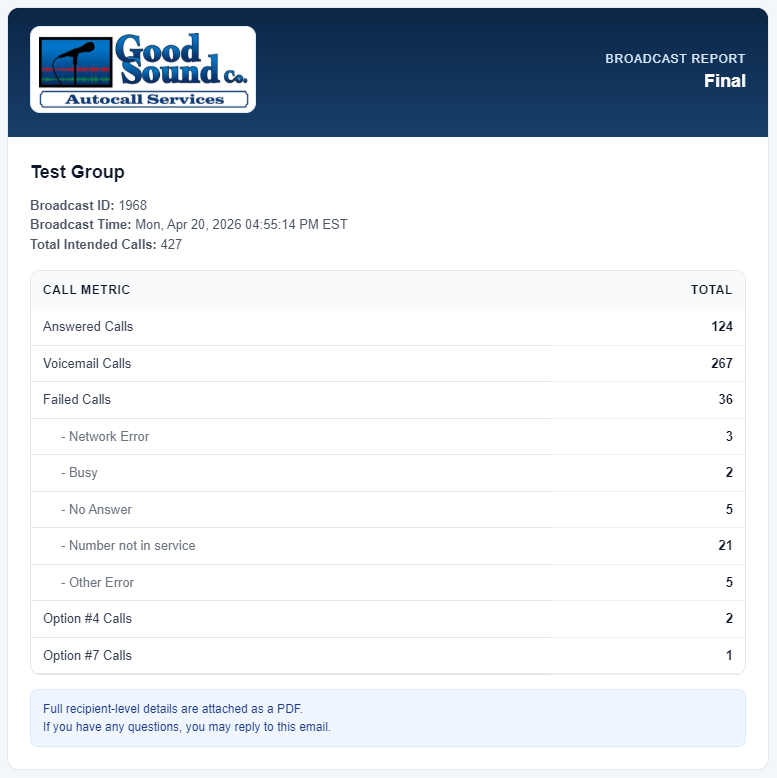
Example AutoCall broadcast email report

What You Will See

  • Broadcast Info: Broadcast ID, run time, and intended call count.
  • Call Totals: Answered, voicemail, failed, and failure-type breakdown.
  • Poll Results: Option totals (for example, Option #2 or Option #4 counts).
  • Recipient Details: A recipient-level PDF is attached for deeper review.

Tip: Keep poll choices consistent in your recording so option totals are easy to interpret from report to report.

Important Notes

Timeouts and Retries

If no selection is entered, the main menu repeats up to 3 attempts before ending the call with goodbye.

Calling Window Rules

AutoCalls sent outside your configured calling window are queued and delivered the next day when your allowed window opens.

Sub Group Selection

If your account has sub groups, enter the group number and press #. Sub group 1 sends to everyone.

Invalid Entries

Invalid password or invalid menu/group entries prompt an error message and return you to the relevant menu.

Need help setting this up?

If you need updates to menu prompts, password flow, or group routing behavior, contact your AutoCall administrator team.

Request Setup Support